Gorilla Desk WordPress Plugin – Download now
A WordPress plugin that integrates Gorilla Desk portal functionality into your WordPress website, enabling customer service ticketing, live chat, and customer portal features.
Description
The Gorilla Desk WordPress Plugin seamlessly integrates your WordPress website with Gorilla Desk’s customer service platform. This plugin allows you to:
– Add Gorilla Desk customer portal functionality to your website
– Enable live chat support for your visitors
– Provide customers with access to support tickets and documentation
– Customize the integration settings from your WordPress admin panel
Features
– ✅ Easy Configuration: Simple admin interface in WordPress Settings
– ✅ Account ID Management: Configure your unique Gorilla Desk account ID
– ✅ Toggle Integration: Enable/disable the integration as needed
– ✅ Chatbot Control: Enable or disable the Gorilla Desk chatbot feature
– ✅ Secure Implementation: Follows WordPress security best practices
– ✅ Clean Uninstall: Removes all data when plugin is uninstalled
Installation
Method 1: Upload Plugin Files
1. Download the plugin files
2. Upload the `gorilla-desk` folder to your `/wp-content/plugins/` directory
3. Go to your WordPress admin panel → Plugins
4. Find “Gorilla Desk Implementation” in the plugin list
5. Click “Activate”
Method 2: WordPress Admin Upload
1. Go to your WordPress admin panel
2. Navigate to Plugins → Add New → Upload Plugin
3. Choose the plugin ZIP file and upload
4. Click “Install Now” then “Activate”
Configuration
Step 1: Get Your Gorilla Desk Account ID
Before configuring the plugin, you need to obtain your Gorilla Desk Account ID:
1. Log into your Gorilla Desk admin panel
2. Navigate to Settings → Integration or API Settings
3. Look for your “Account ID” or “Portal ID”
4. Copy this ID (it should be a long string of letters and numbers)
Note: If you cannot find your Account ID, contact Gorilla Desk support for assistance.
Step 2: Configure the Plugin
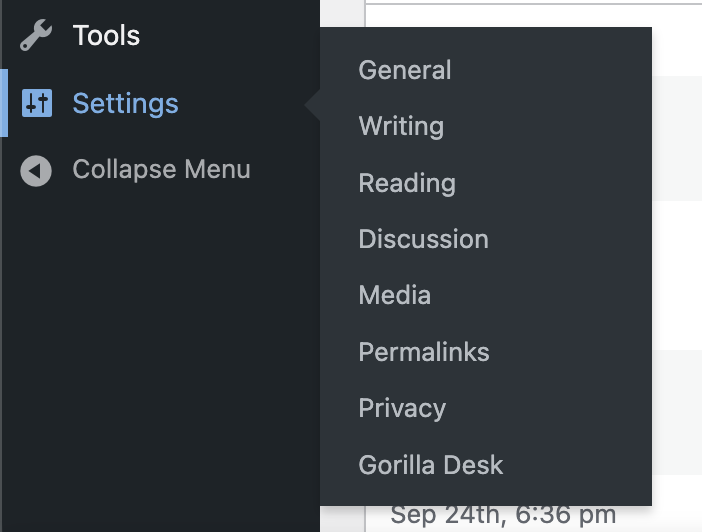
1. In your WordPress admin panel, go to Settings → Gorilla Desk
2. Configure the following settings:
Enable Gorilla Desk: ✅ Check this box to activate the integration
Account ID: 📝 Enter your Gorilla Desk Account ID (required)
Enable Chatbot: ✅ Check this box to show the live chat widget on your website
3. Click “Save Changes”
Step 3: Verify Installation
1. Visit your website’s frontend
2. Look for the Gorilla Desk integration elements:
– Customer portal links/buttons
– Live chat widget (if enabled)
– Support ticket functionality
Usage Instructions
For Website Administrators
Managing Settings:
– Access plugin settings: WordPress Admin → Settings → Gorilla Desk
– Quick access: Go to Plugins page → Find “Gorilla Desk Implementation” → Click “Settings”
Enabling/Disabling Features:
– Toggle the main integration on/off using the “Enable Gorilla Desk” checkbox
– Control the chatbot separately with the “Enable Chatbot” checkbox
– Save changes after any modifications
For Website Visitors
Once configured, your website visitors will have access to:
– Customer Portal: Access to submit and track support tickets
– Live Chat: Real-time communication with your support team (if enabled)
– Knowledge Base: Access to your support documentation and FAQs
Troubleshooting
Common Issues
1. Integration not showing on frontend
– ✅ Verify the plugin is activated
– ✅ Check that “Enable Gorilla Desk” is checked in settings
– ✅ Ensure Account ID is entered correctly
– ✅ Clear any caching plugins
2. Account ID not working
– ✅ Double-check the Account ID from your Gorilla Desk admin panel
– ✅ Make sure there are no extra spaces or characters
– ✅ Contact Gorilla Desk support to verify your Account ID
3. Chatbot not appearing
– ✅ Verify “Enable Chatbot” is checked in plugin settings
– ✅ Check if the chatbot is enabled in your Gorilla Desk settings
– ✅ Test on different pages of your website
4. Plugin conflicts
– ✅ Temporarily disable other plugins to identify conflicts
– ✅ Check browser console for JavaScript errors
– ✅ Ensure your WordPress theme is compatible
Getting Support
For Plugin Issues:
– Check the WordPress error logs
– Review browser console for JavaScript errors
– Test with a default WordPress theme
For Gorilla Desk Service Issues:
– Contact Gorilla Desk support directly
– Verify your Gorilla Desk account is active
– Check your Gorilla Desk integration settings
Technical Details
Requirements:
– WordPress 6.8.x or higher
– PHP 8.x or higher
– Valid Gorilla Desk account with API access
Plugin Information:
– Version: 1.0.0
– Author: Bolorerdene Bundgaa
– License: GPL v2 or later
– Text Domain: gorilla-desk
Changelog
Version 1.0.0
– Initial release
– Basic Gorilla Desk integration
– Admin settings panel
– Chatbot toggle functionality
– Account ID configuration
– WordPress standards compliance
Privacy & Data
This plugin loads external JavaScript from Gorilla Desk servers (`app.gorilladesk.com`). The integration may collect visitor data according to Gorilla Desk’s privacy policy. Please review their privacy policy and ensure compliance with your local privacy regulations.
Support
For technical support with this WordPress plugin, please contact:
– Author: Bolorerdene Bundgaa
– Website: https://bolor.me
For Gorilla Desk service support:
– Visit your Gorilla Desk admin panel
– Contact Gorilla Desk customer support
Author: Bolorerdene Bundgaa